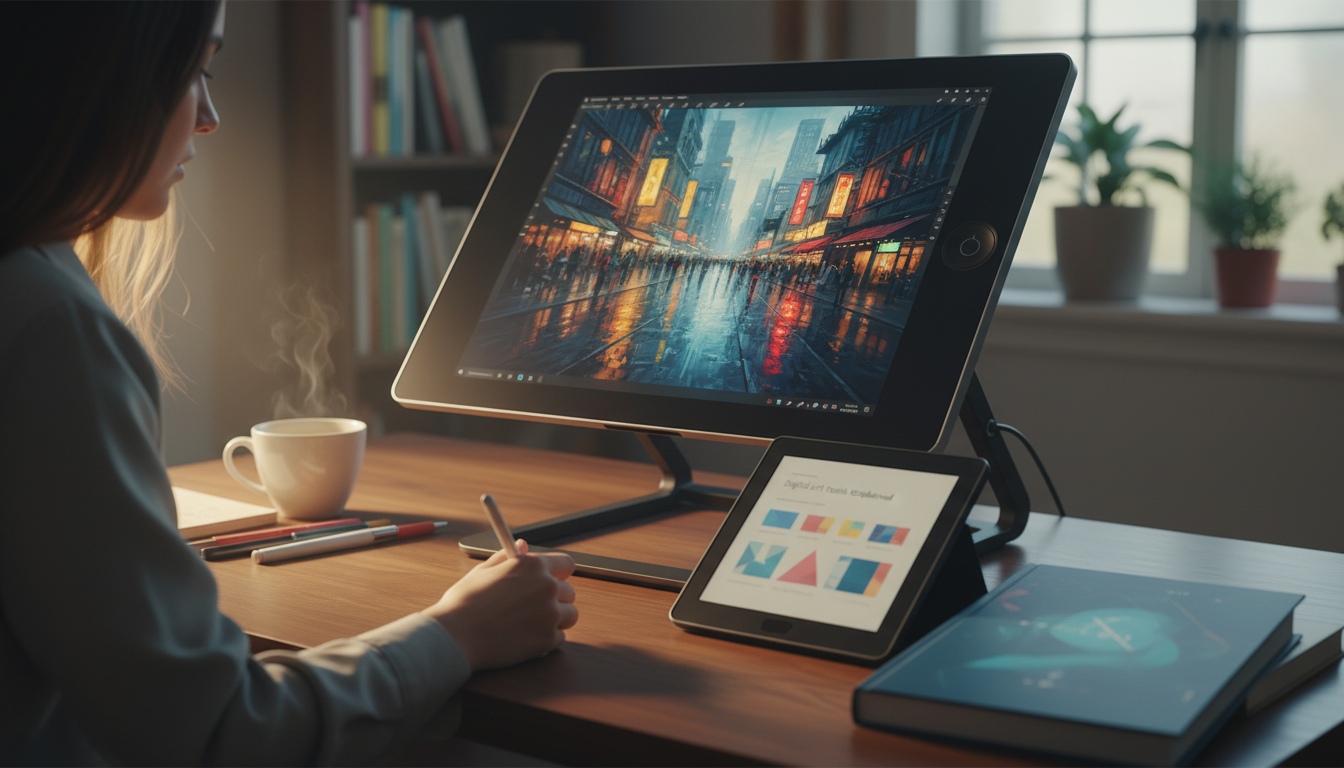
Digital art starts feeling fun the moment your tools stop feeling like a maze. Instead of bouncing between menus, second-guessing brushes, or repainting the same shape three times, the goal is to build a small set of reliable actions that turn ideas into visible progress. Once that foundation is in place, any app becomes easier to learn—because you’re thinking in outcomes (clean edge, smooth gradient, better proportions), not buttons.
“Mastering your canvas” isn’t about knowing every feature. It’s about reducing friction so you can practice consistently and finish more pieces.
Different apps label tools differently, but the jobs stay the same. Learn what each tool is for, and you’ll feel comfortable across software.
| Tool | Best for | Beginner tip |
|---|---|---|
| Basic round brush | Sketching, blocking values, painting forms | Start with one brush and learn edge control before collecting packs |
| Hard eraser | Cleaning silhouettes, crisp edges | Use for shape design; avoid over-erasing sketch energy too early |
| Soft brush | Smooth gradients, atmosphere, subtle shading | Use sparingly; too much creates a “muddy” look |
| Layers | Separating sketch/line/color, easy edits | Name layers and group them to stay organized |
| Clipping mask | Shading/highlights within a shape | Base color on one layer, clip lighting layers above |
| Lasso selection | Clean shape edits and sharp rendering edges | Combine with fill and transform for fast corrections |
| Transform/warp | Fixing proportions without repainting | Use after sketch stage and again before final polish |
| Blending tool | Softening transitions | Blend only after values are correct; don’t blend everything |
For beginners, the most important brush settings are opacity/flow and size dynamics. Pressure sensitivity helps you get thin-to-thick lines and gentle shading without constantly changing sliders. Adobe’s help docs include clear explanations of common brush controls that translate well across apps.
Adobe: Digital painting basics and brush settings
Think of layers as “undo insurance.” Keep your sketch separate from colors, and use clipping masks when you want to shade inside a shape without painting outside the edges. If you’re using Krita, its manual is a solid reference for how layers and masks behave in practice.
Krita Manual: Brushes, layers, and masks
Selections are how you make sharp, intentional changes: adjusting a jawline, straightening a horizon, or tightening a silhouette. Transform tools (scale/rotate/warp) are perfect for proportion fixes before you commit to detail. These tools reduce repainting and keep your energy focused on the picture, not damage control.
If you want a compact guide that focuses on fundamentals (not feature overload), Master Your Canvas with Digital Art Tools | Beginner-Friendly Ebook with Digital Art Tools Explained is designed to make the core tools feel obvious and usable quickly.
For artists who like a reliable secondary input for clicking, dragging, and precise UI control, consider the RGB Wireless Gaming Mouse for Mac and PC to support everyday navigation and selection-heavy edits.
Wacom: Getting started with a pen tablet
When the tools make sense, practice stops feeling like guesswork. If the goal is to get comfortable fast—and stay consistent—Master Your Canvas with Digital Art Tools | Beginner-Friendly Ebook with Digital Art Tools Explained is a practical next step.
Mostly yes: the names and menu locations change, but brushes, layers, selections, transforms, blending, and masks behave similarly. For example, a “clipping mask” in one app may be a “clipped layer” or “alpha lock” in another, but the job—shading inside a base shape—stays the same.
Start with a minimal brush set so you can control edges and values, then add layers for easy edits. A simple first workflow is a sketch layer, a base color layer, and shading on a clipping mask above the base.
Yes—especially for flat design, clean selections, shape-based painting, line cleanup, and mixed workflows. A tablet helps most with pressure-sensitive strokes and natural drawing, and many artists use both: tablet for painting and a mouse for navigation and precision clicking.





Leave a comment